Offline installation
Offline installation copies the live system to the target disk, then writes user, locale, network, boot and cleanup configuration. It does not require a network connection and produces a system close to the live desktop and software set.
Use it when the network is unavailable, you want the default desktop, or you prefer a fast installation before updating and customizing the system.
Driver handling
Offline installation does not run the full chwd --autoconfigure process.
- The standard image does not carry the modern NVIDIA driver set.
- The NVIDIA image removes NVIDIA-only packages when no NVIDIA GPU is detected.
- On physical hardware it removes VirtualBox, VMware and QEMU guest tools used by the live environment.
Choose the correct image on the download page before installing.
Installation steps
The screenshots below were captured from the CatOS 2026.08.05 offline installation flow at a standard 1920×1080 virtual display resolution.
-
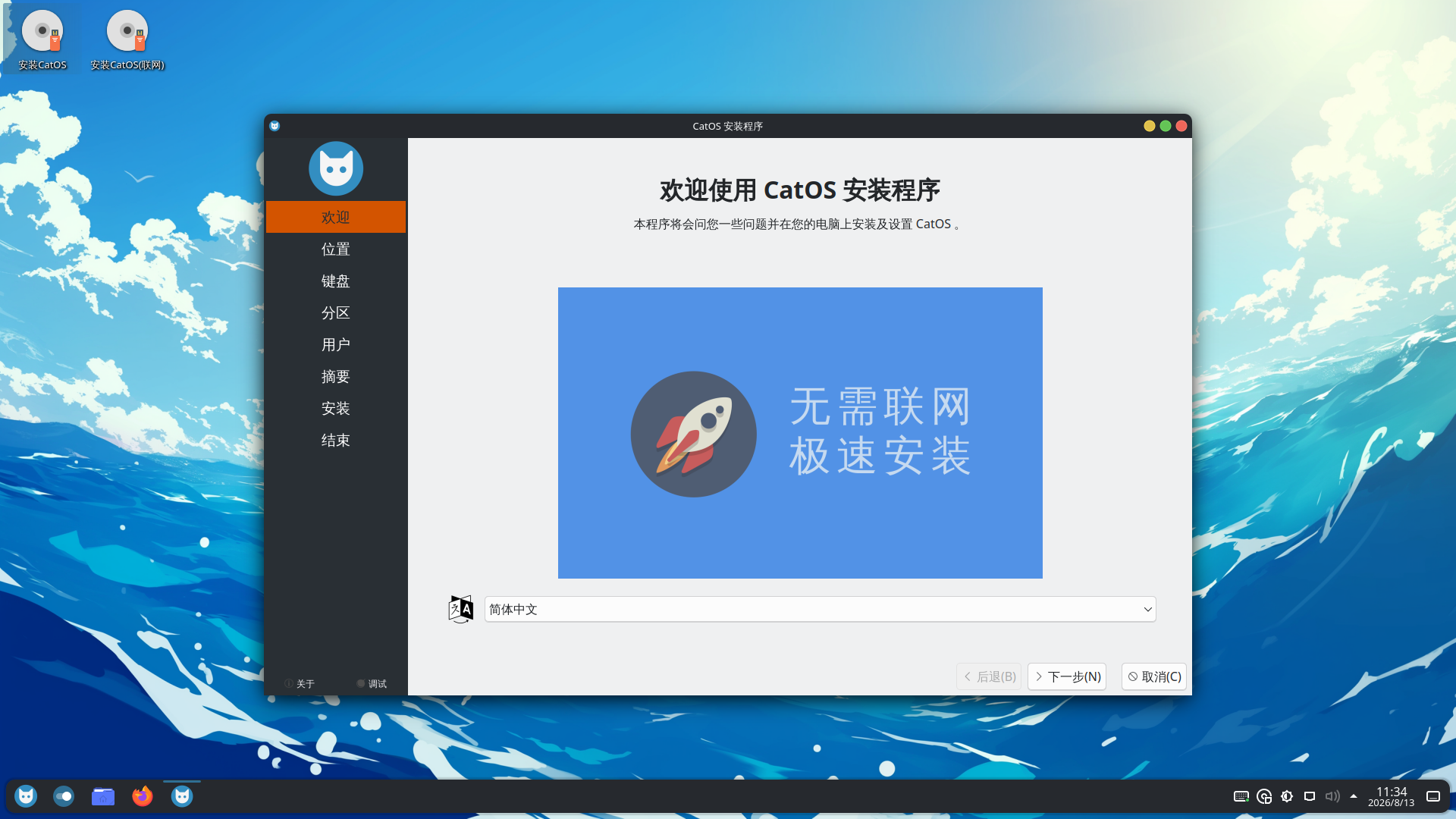
Open the offline “Install CatOS” launcher.
-
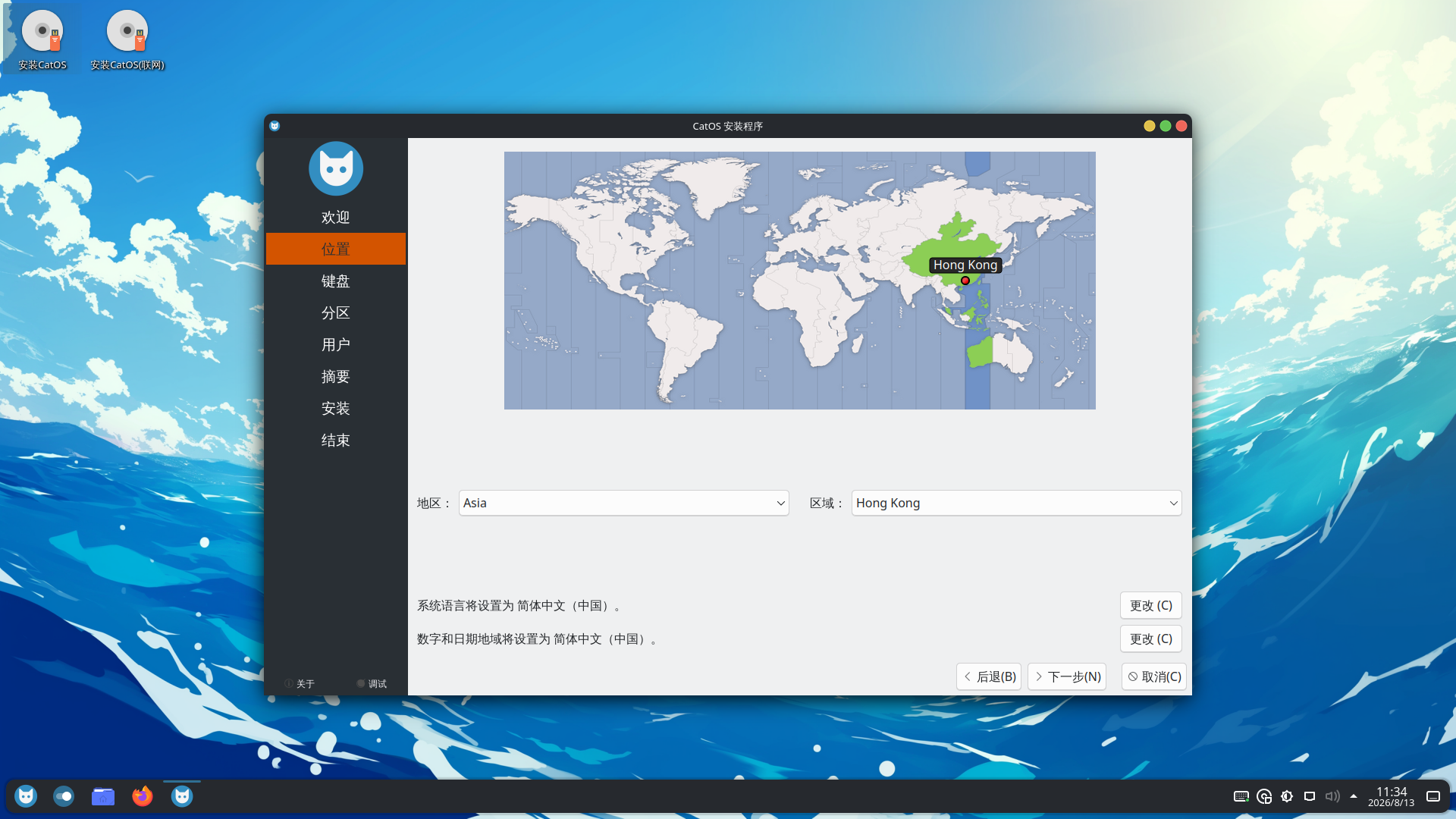
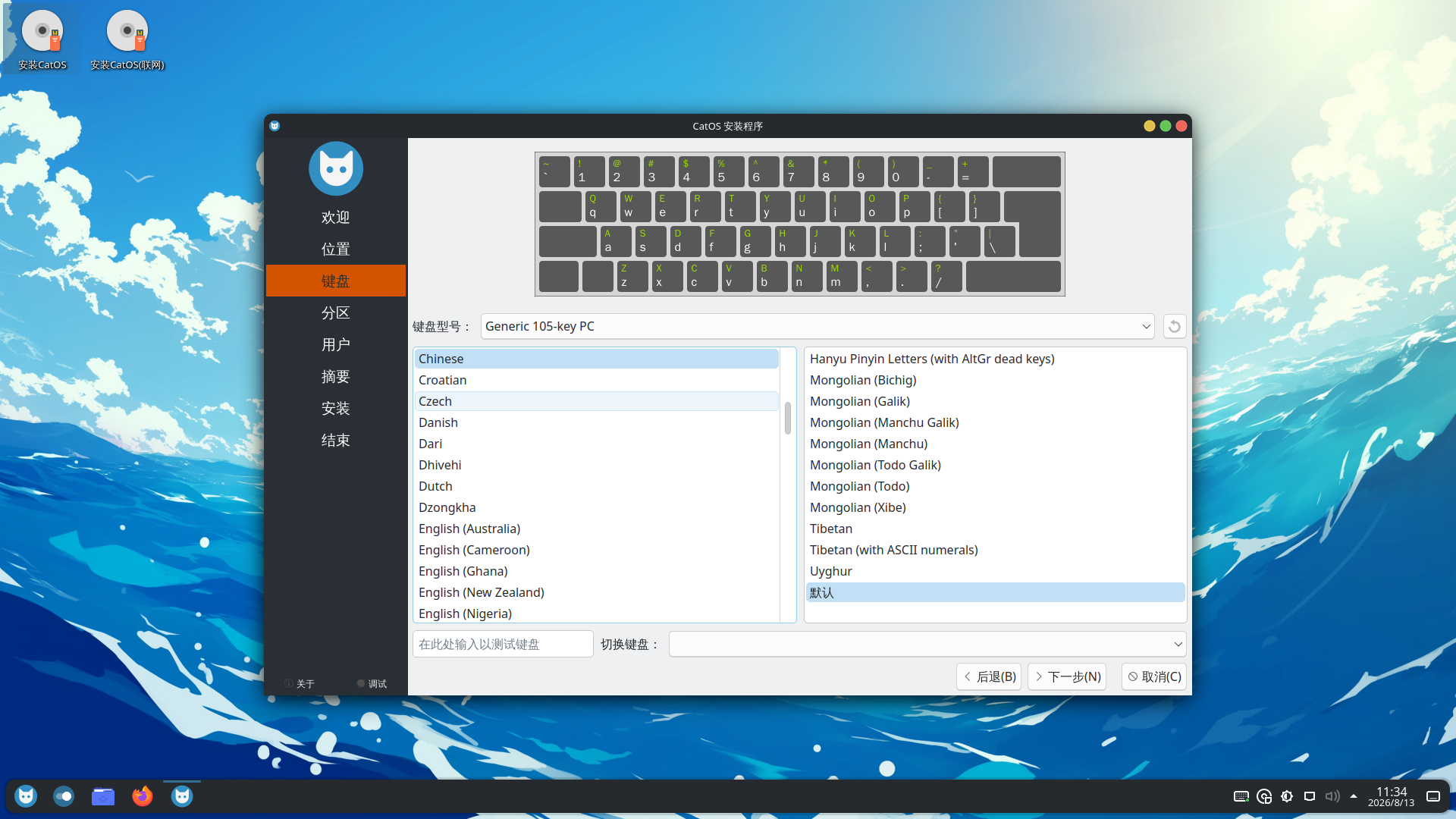
Select language, timezone and keyboard layout.
-
Select the target disk and partition method.
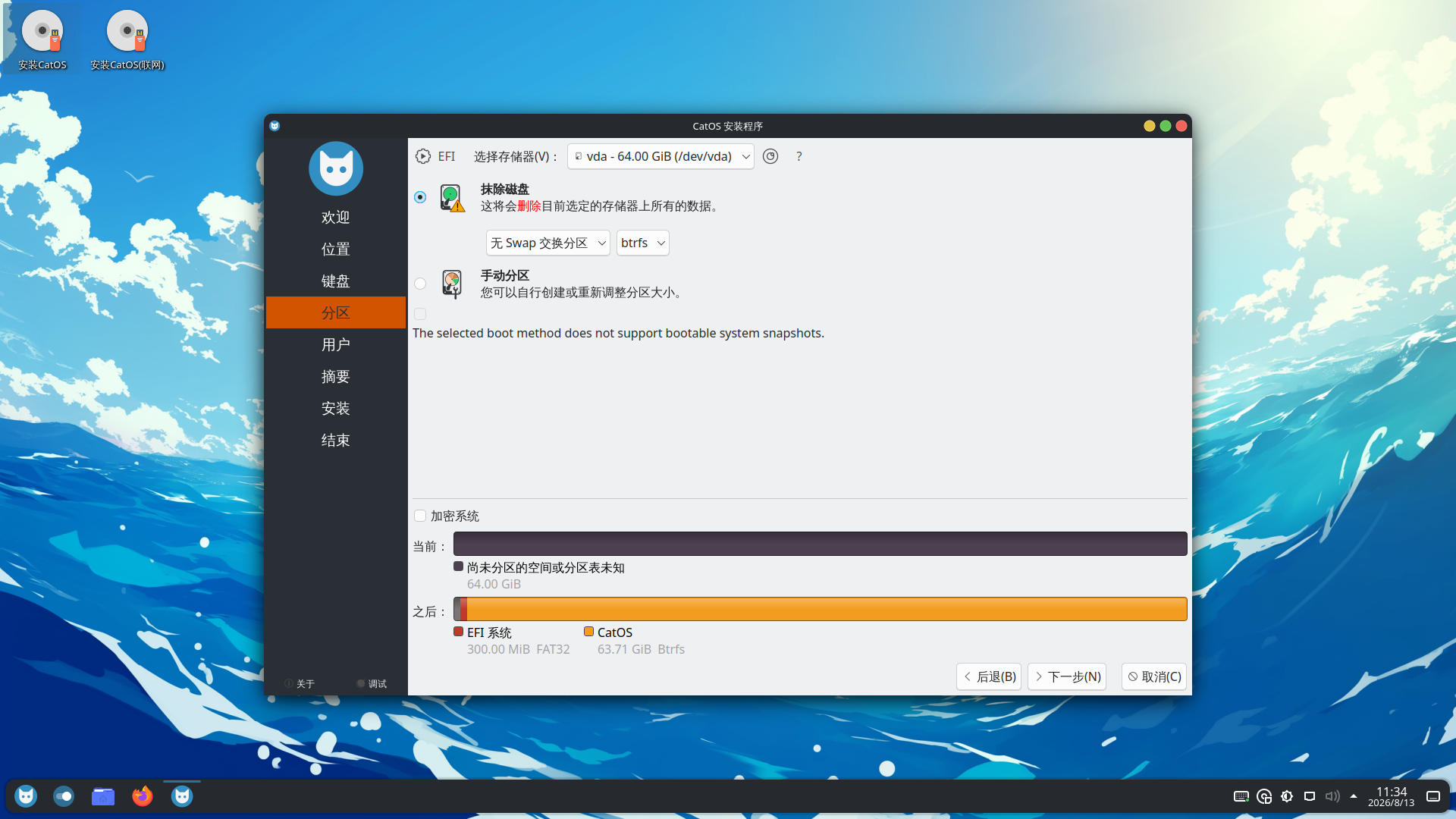 Partition changes are destructive
Verify the disk model and size. Existing partitions and files may become unrecoverable once writing starts.
See partitioning and filesystems before using manual partitioning or dual boot.
-
Create the user account and hostname.
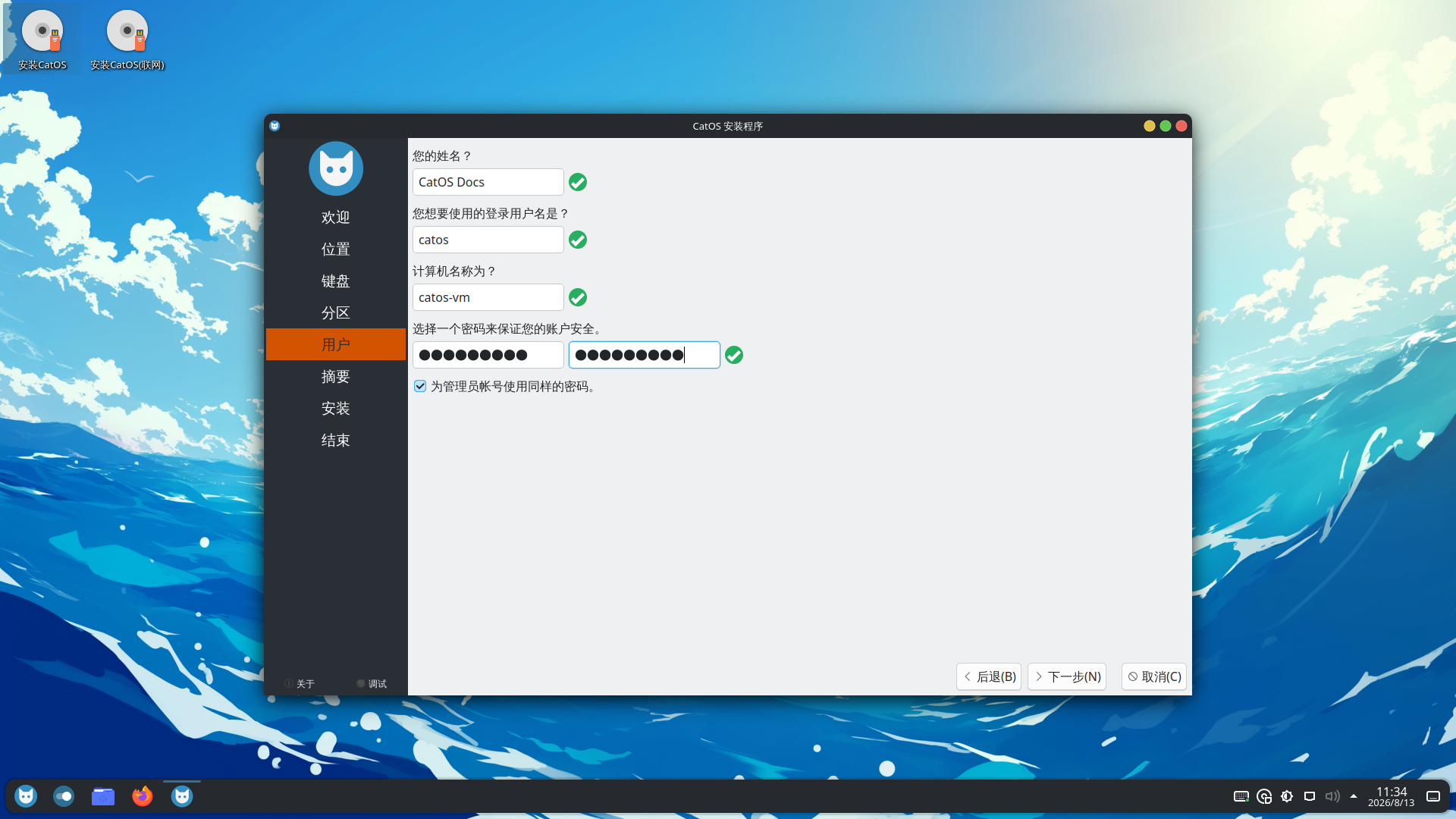
-
Review the installation summary and start installation.
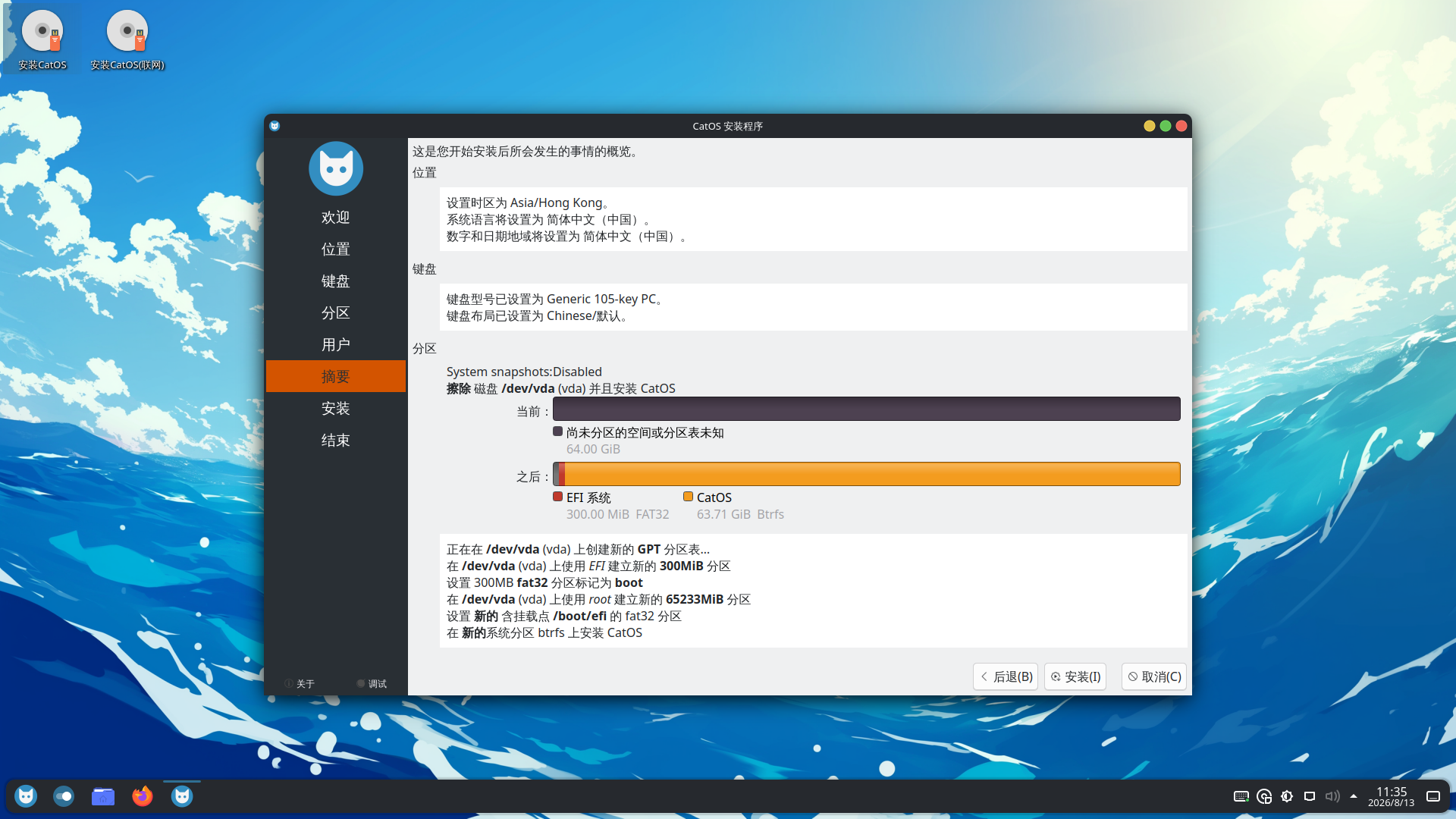
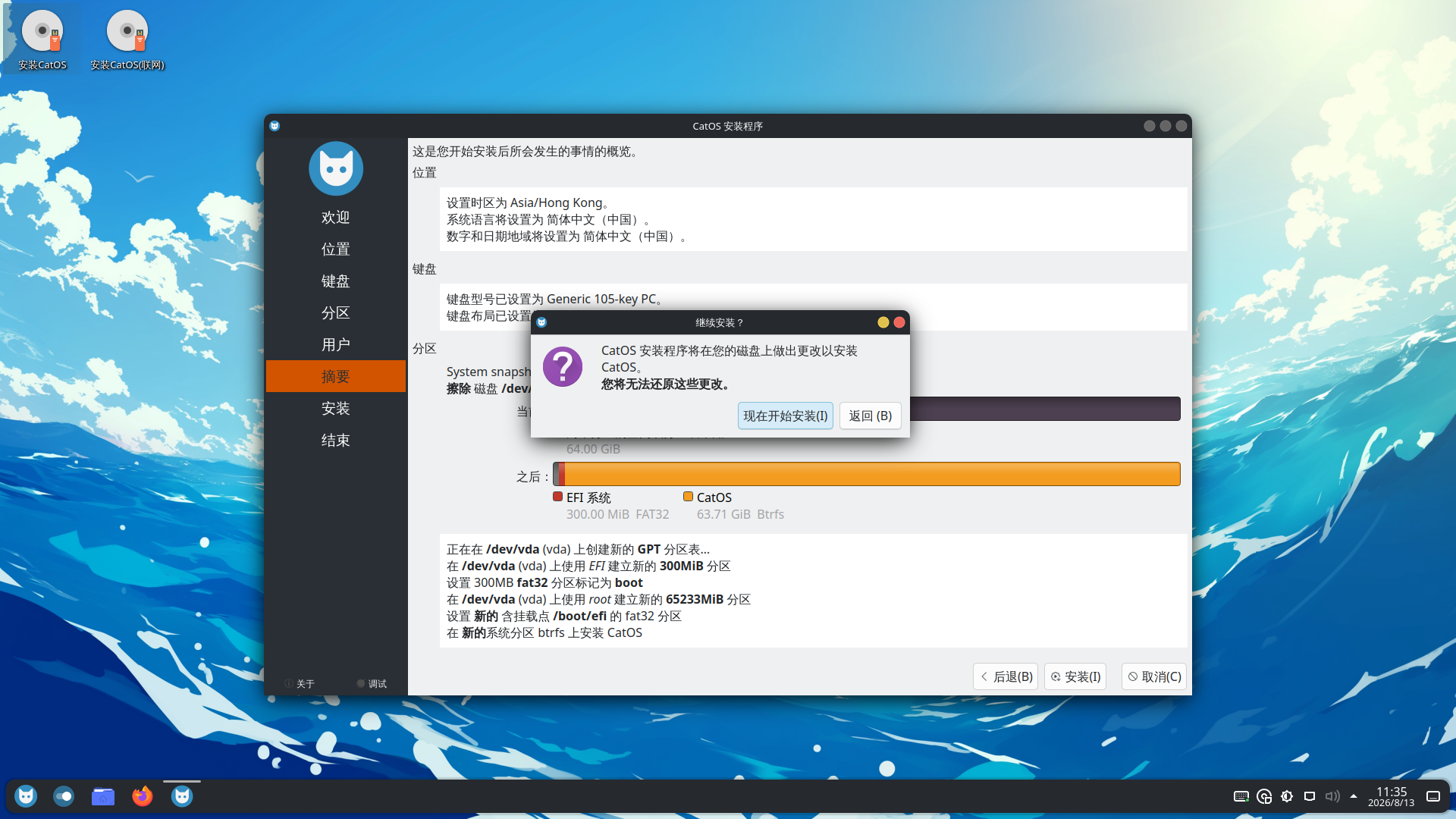
-
Wait without removing the USB drive or powering off the machine.
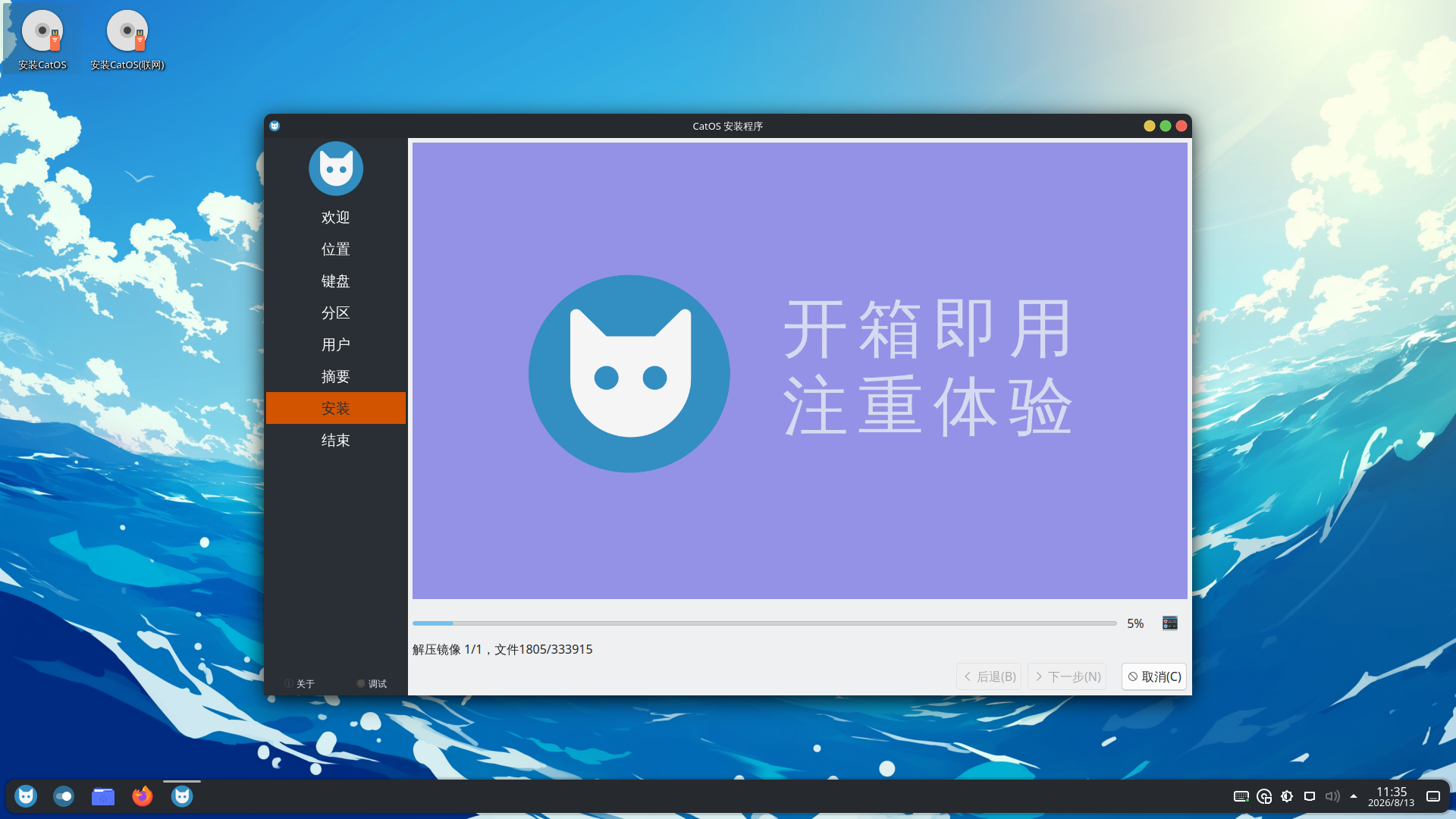
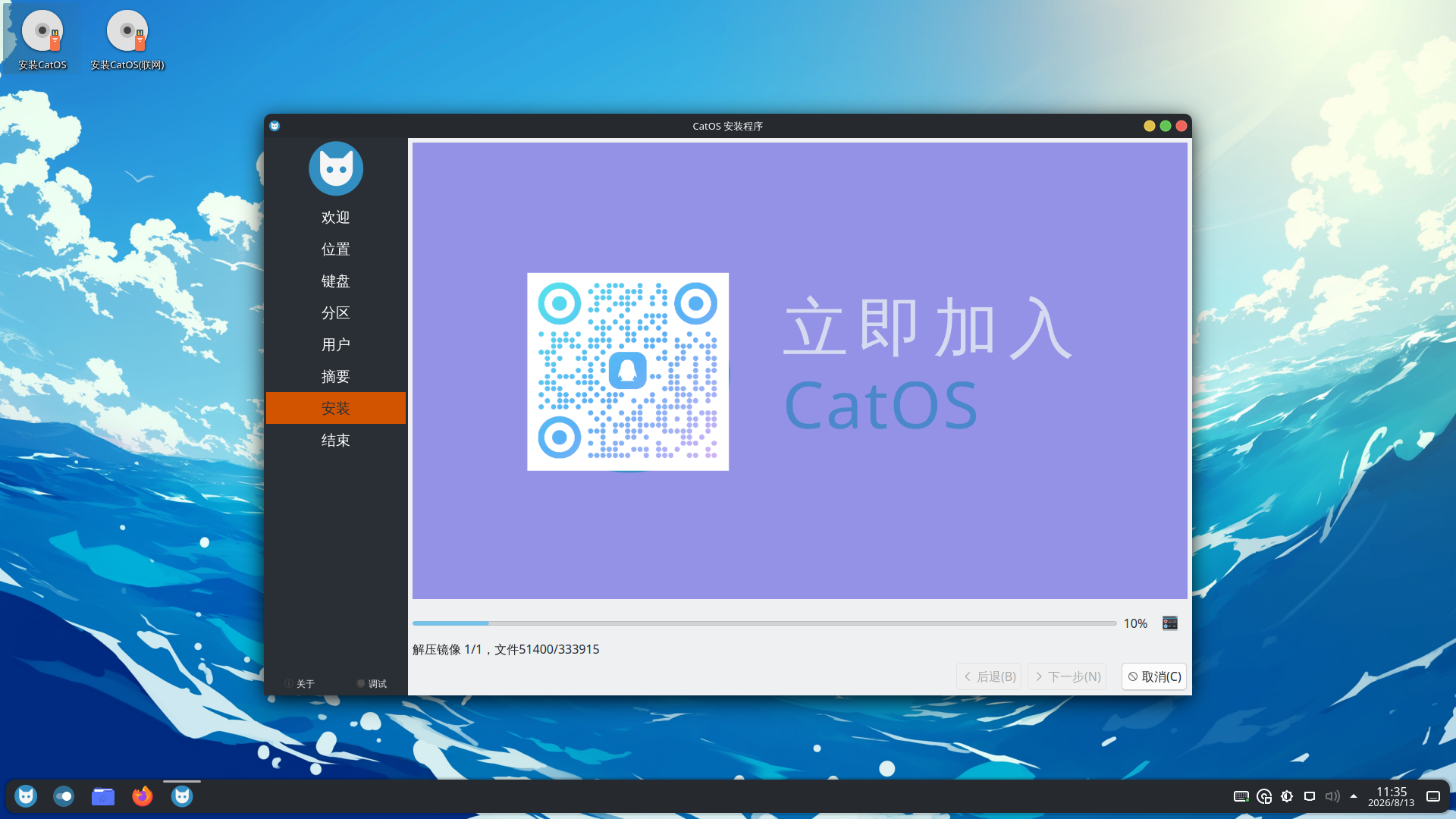
-
Reboot and remove the USB drive.
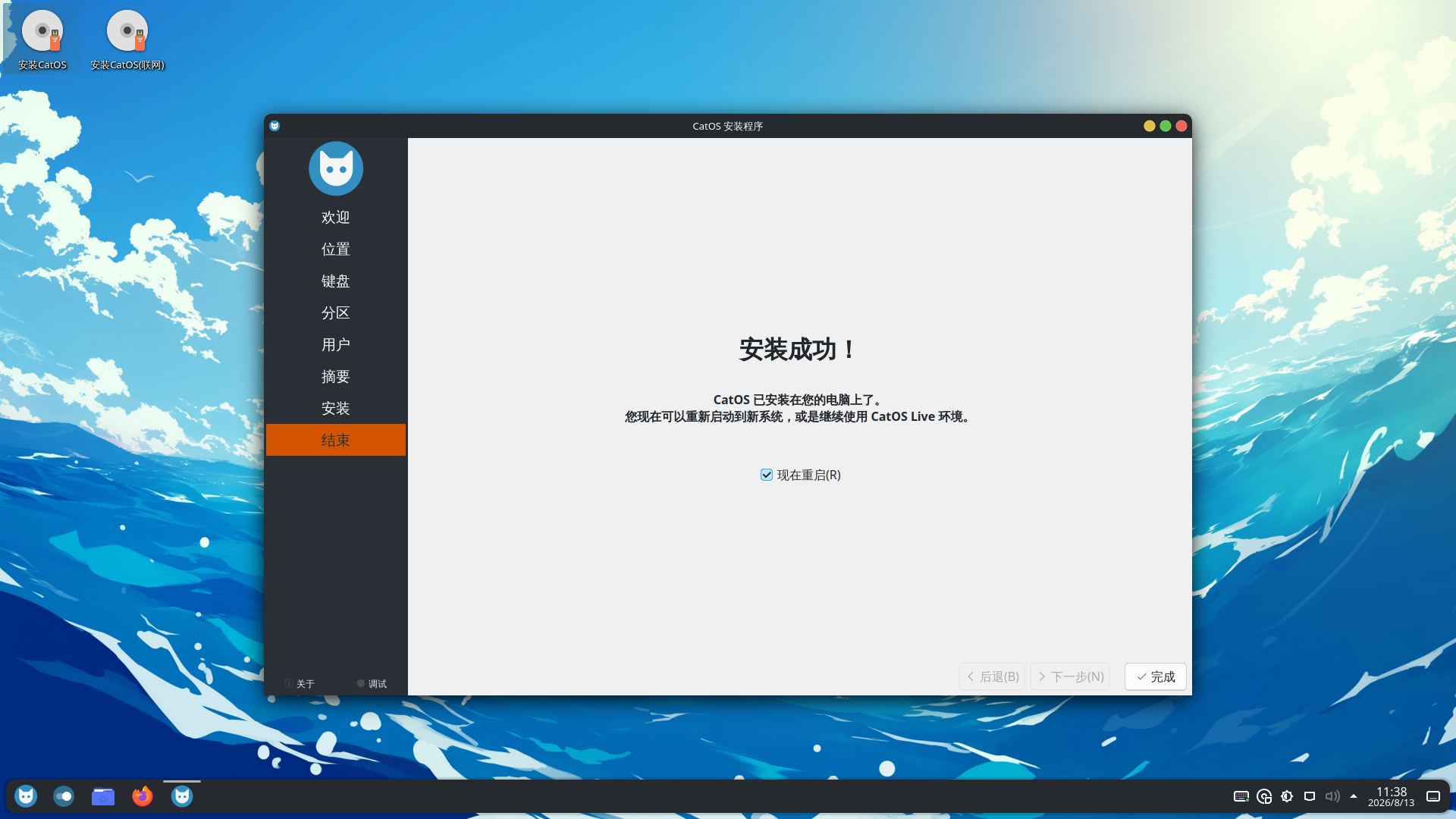
After first boot, update the complete system:
sudo pacman -Syu
Then follow the post-installation checks.