Preparation
System requirements
CatOS 2026.08.05 is provided only for x86_64. It does not support ARM, LoongArch or 32-bit x86 processors.
Minimum:
- 64-bit dual-core processor;
- 4 GB RAM;
- 30 GB free disk space;
- 8 GB or larger USB drive.
Recommended:
- 64-bit processor with four or more cores;
- 8 GB or more RAM;
- 64 GB or larger SSD;
- UEFI firmware;
- stable wired network or reliable Wi-Fi for online installation.
Download and verify the image
Choose the standard or NVIDIA image on the download page, then verify it:
sha256sum catos-2026.08.05-x86_64.iso
sha256sum catos-for-nvidia-2026.08.05-x86_64.iso
Do not write or install an image whose checksum does not match.
Choose a USB creation tool
| Tool | Platforms | Best use |
|---|---|---|
| Ventoy | Windows, Linux | Store multiple ISO files and replace them without reflashing |
| Rufus | Windows | Direct image writing with firmware and partition options |
| balenaEtcher | Windows, Linux, macOS | Simple single-image flashing workflow |
| ISO Image Writer | Linux | KDE graphical ISO writing tool |
dd | Linux, macOS | Advanced users familiar with block devices |
Always identify the USB drive by model and size. Selecting the wrong device can erase another disk.
Ventoy
Ventoy installs a boot environment on the USB drive. Afterwards, copy ISO files to its data partition instead of flashing the drive again. Ventoy lists all copied images at boot.
Links:
Windows
- Download and extract Ventoy.
- Run
Ventoy2Disk.exe. - Select the USB drive.
- Install Ventoy and confirm the destructive operation.
- Copy the CatOS ISO to the Ventoy data partition.
- Boot the USB drive and select the ISO from the menu.
Linux
Extract Ventoy and run:
sudo sh Ventoy2Disk.sh -i /dev/sdX
/dev/sdX must be the whole USB device, not a partition such as /dev/sdX1. Verify it first:
lsblk -o NAME,SIZE,MODEL,TRAN,MOUNTPOINTS
CatOS 2026.08.05 itself supports UEFI Secure Boot, but Ventoy adds its own boot chain and key-enrollment path. If Ventoy cannot boot CatOS with Secure Boot enabled, try a direct write with Rufus, Etcher or ISO Image Writer first; temporarily disabling Secure Boot should be a troubleshooting step rather than the default requirement.
Rufus on Windows
Select the USB device and CatOS ISO, keep the default partition settings unless you have a specific requirement, and start writing.
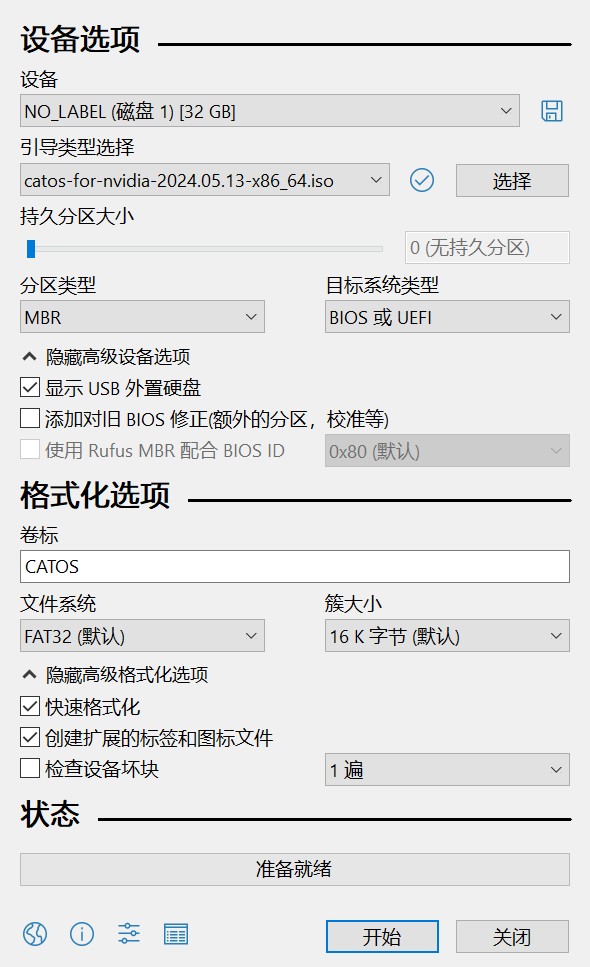
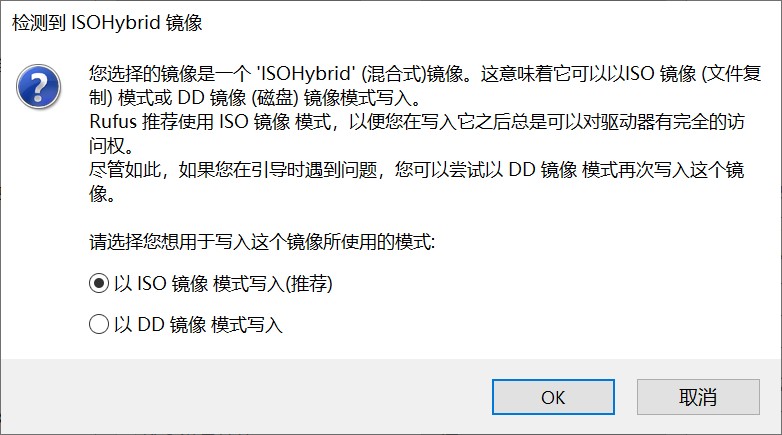
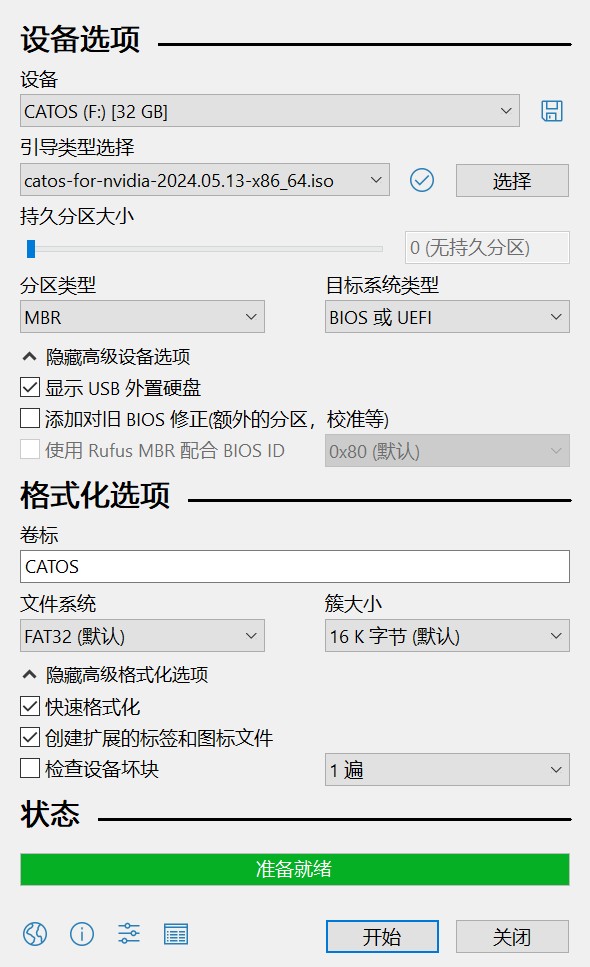
If Rufus asks between ISO and DD mode, try the recommended mode first. Recreate the drive in DD mode if it does not boot.
balenaEtcher
Etcher is suitable when you want a simple select-image, select-device and flash workflow.
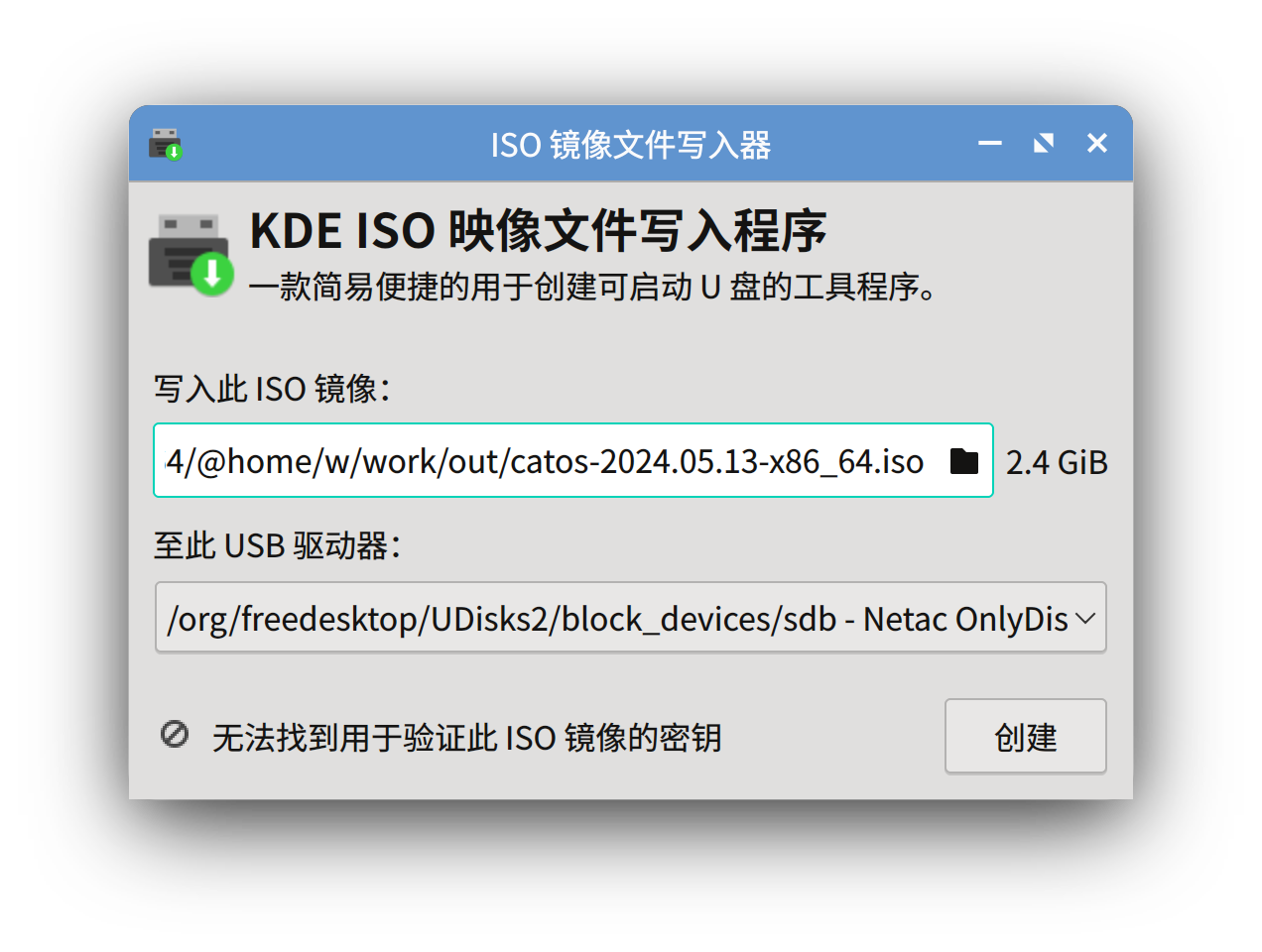
ISO Image Writer on Linux
Arch Linux:
sudo pacman -S isoimagewriter
Ubuntu:
sudo apt install isoimagewriter
Fedora:
sudo dnf install isoimagewriter
Direct writing with dd
Use only when you can identify the block device confidently:
sudo dd if=catos-2026.08.05-x86_64.iso of=/dev/sdX bs=4M status=progress oflag=sync
Use the NVIDIA filename when writing that image. The output must be the whole device, not a numbered partition.
Boot the installation media
Use the firmware boot menu, commonly opened with F12, F11, Esc or F8, and prefer the entry marked UEFI. If boot fails, verify the image again and check Secure Boot settings.